- Who can: a member with the “Assign Digital Workers” permission
- Where: Tasks › the task
- Time: ≈ 3 minutes
Before you start
You need a Digital Worker set up in Studio. See Digital Workers. In the example, “Demo: Request dispatcher” checks the request in the task “Demo: Check the request Kyiv → Odesa”: route, loading date, weight and body type.
A Digital Worker does the task by its own instructions and with its superpowers. It reads the title, the description, the comments and the files of the task.
| You | The Digital Worker |
|---|---|
| set its task to “To do”, create its task in “To do”, or assign it to a task in “To do” | starts |
| click Run Digital Worker on its task, in any status | starts again |
| mention it with “@” in a comment | starts and answers that comment |
| assign it to a task in “Backlog” | waits |
Steps
Assign the Digital Worker
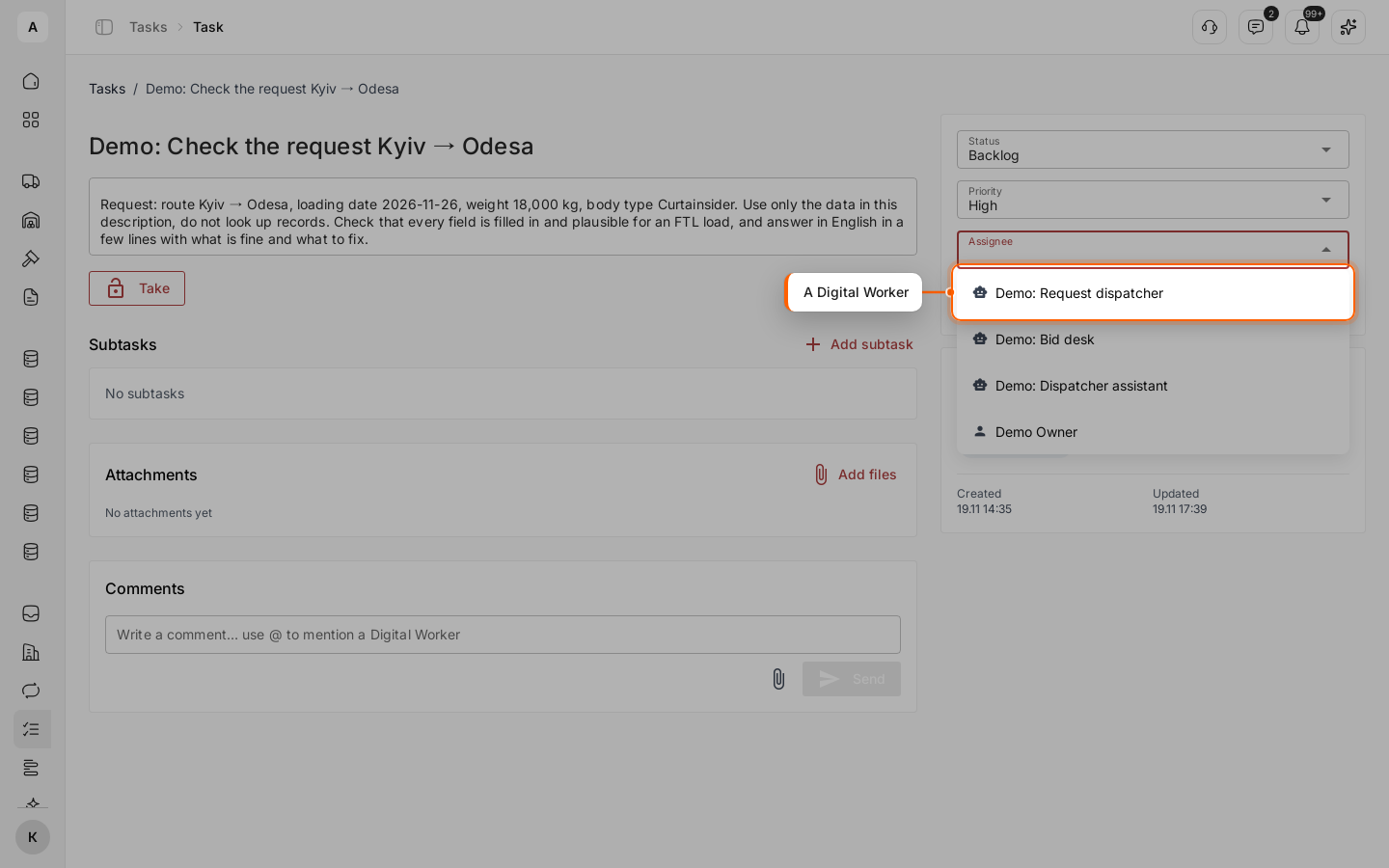
Open the task, keep it in “Backlog” and pick the Digital Worker in “Assignee”, in the panel on the right. Digital Workers are at the top of the list, with a robot icon.
Start it
Set the status to “To do”. The Digital Worker starts.
Follow the work
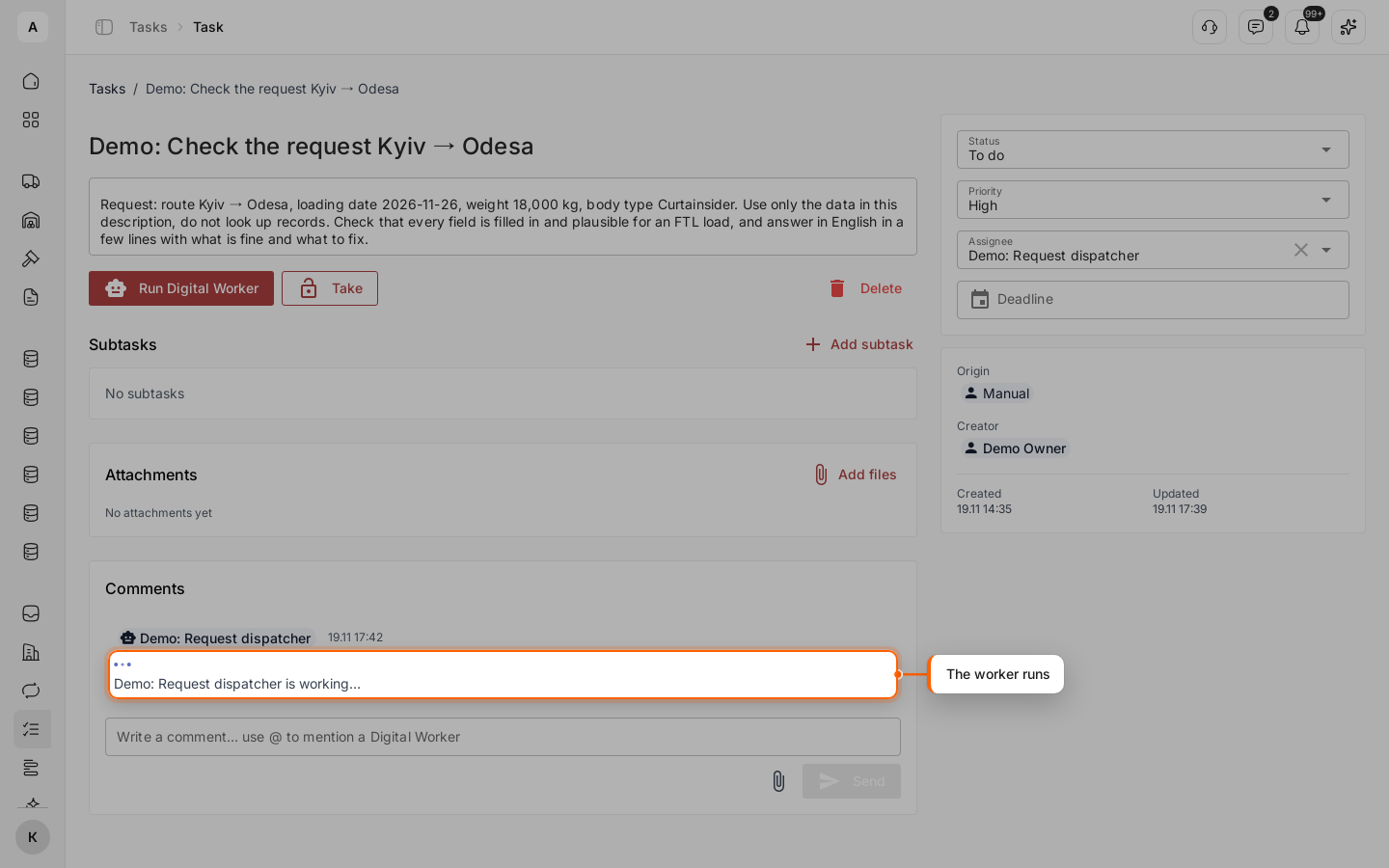
Under “Comments”, the Digital Worker shows “Demo: Request dispatcher is working…” while it runs.
Read the answer
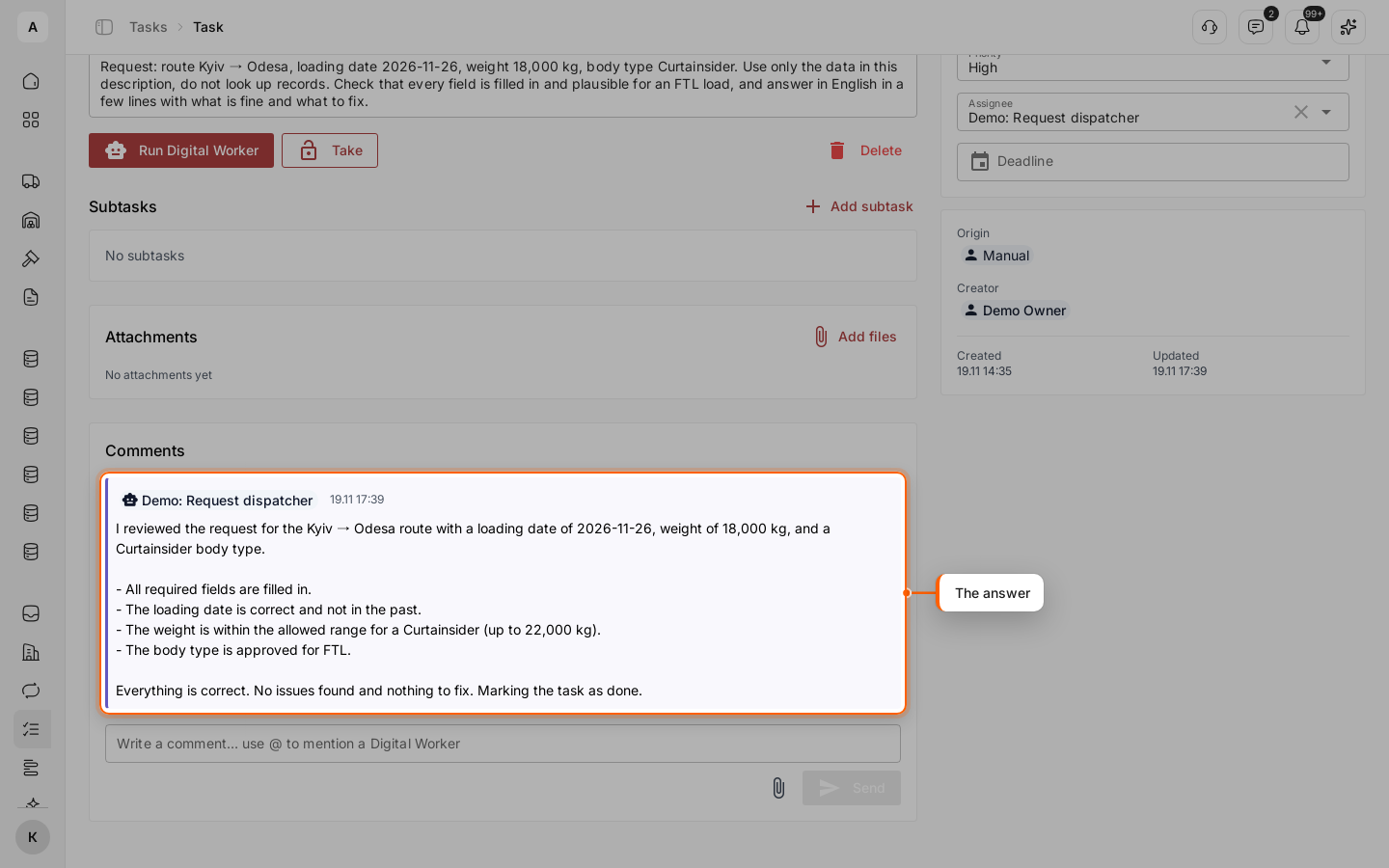
When it finishes, the answer appears as a comment signed with its name and a robot icon. Files it adds are marked “AI”. The Digital Worker sets “Done” itself when its instructions say so. If they do not, set “Done” yourself when the answer is enough. If the answer is wrong, write what to fix in a comment and mention the Digital Worker with “@”.
Run it again
To run the Digital Worker again, for example after you corrected the request, click Run Digital Worker under the description.
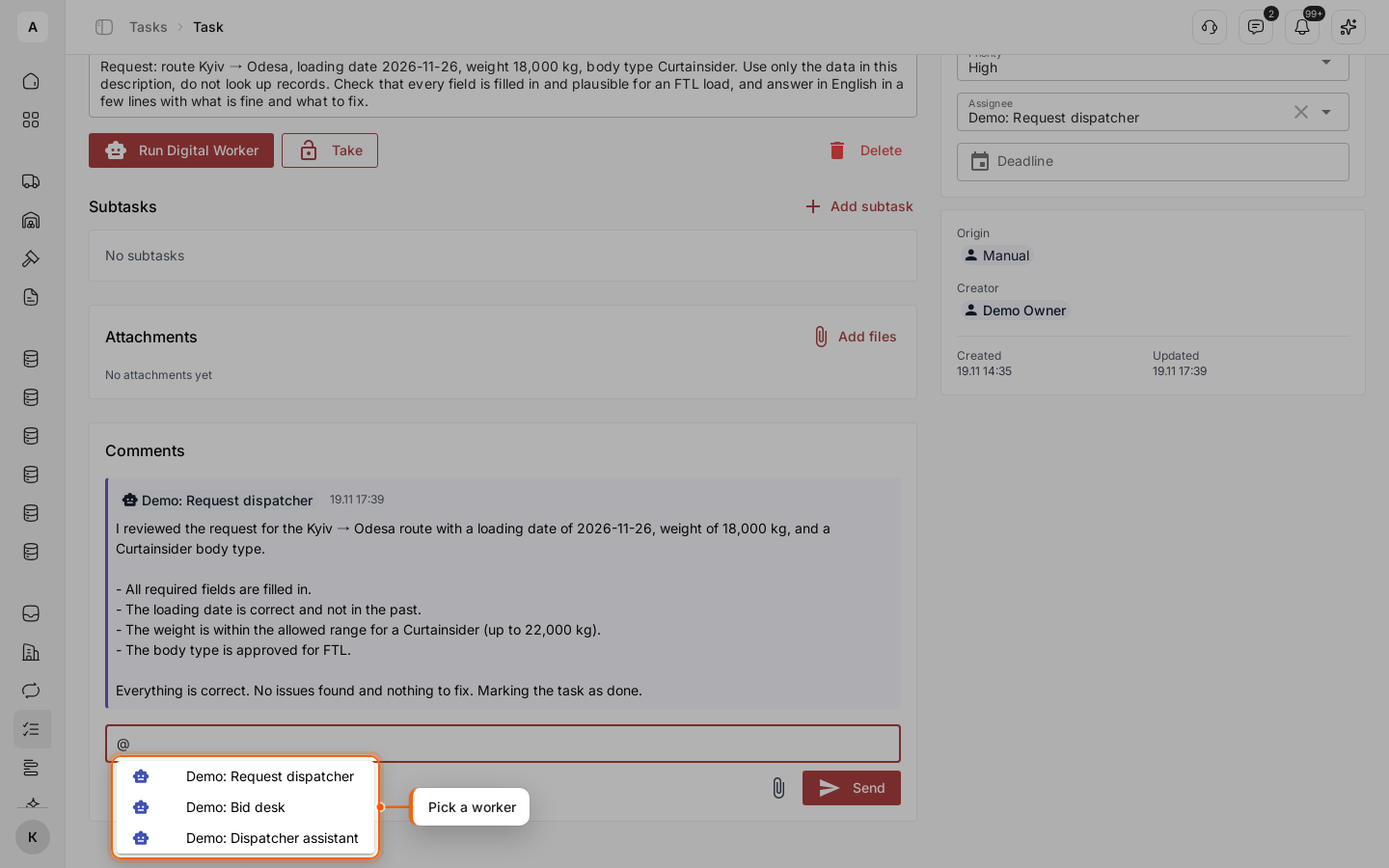
Ask a Digital Worker in a comment
In a comment, type “@” and pick a Digital Worker from the list, then write your question: “@Demo: Request dispatcher the weight is 18 t now, check again”. The mentioned Digital Worker starts and answers in the comments, no matter who the task is assigned to.